Every bookkeeper knows this moment. The bank statement lands. Your books show one number. The bank shows another. Today they’re sitting $231.30 apart, and there’s no obvious reason why.
Bank reconciliation is how you close that gap. Not by nudging the ending balance until the report stops complaining, but by working through the difference until you can point to exactly where it came from, line by line.
This guide walks through that process the way I actually run it: a full step-by-step method, a worked example with real numbers, the exact screens you’ll use in QuickBooks Online and Xero, and what changes if you’re banking in the UK, the US, Canada or Australia. If you’ve ever “finished” a reconciliation by typing over the difference so the report balances, this guide is meant to stop you having to do that again.
What Bank Reconciliation Actually Means
Bank reconciliation means comparing your own bookkeeping records against what the bank says actually happened in the account, then working through every difference until both describe the same reality. Your books and the bank statement are two independent records of one account: one kept by you, one kept by the bank. Reconciliation is the proof that they agree. It isn’t a formality you complete before moving on.
Done properly, it ends with two numbers: an adjusted bank balance and an adjusted book balance. When those two numbers match exactly, you’re reconciled. Until they do, something in one record or the other hasn’t been accounted for yet.
Why It’s Worth Doing Properly, Every Period
- It catches errors while they’re still cheap to fix. A duplicate entry, a mistyped amount, or a transaction posted to the wrong account is far easier to correct the same month than three months later, once it’s fed into reports someone has already acted on.
- It catches unauthorised transactions early. Most banks give you a limited window, often weeks rather than months, to dispute a transaction you didn’t make. The sooner you spot it, the more options you have.
- It keeps your cash position trustworthy. A profit and loss statement can look healthy while the actual bank balance tells a completely different story. Reconciliation confirms the number you’re making decisions from is real.
- It’s the precondition for handing books to an accountant, a lender, or an investor with confidence. Nobody downstream can trust a set of books that hasn’t been reconciled.
On one reconciliation I ran for a hospitality client, I matched every EFTPOS settlement line individually instead of just checking the daily total. That turned up a $412 deposit the bank’s processor had misapplied against a different merchant ID entirely. It was invisible at the total level and only showed up once I checked each line against the batch report. That’s the habit reconciliation is meant to build: check the lines, not just the total.
What You Need Before You Start
- This period’s bank statement, covering the exact statement dates (PDF, paper, or your online banking transaction history for that range).
- Your bookkeeping records for the same period, in whatever software you use.
- Last period’s reconciliation report and closing balance. This period’s opening balance has to match it exactly.
- A running list of anything still outstanding from last time: cheques that hadn’t cleared, deposits still in transit.
How to Reconcile a Bank Statement, Step by Step
We’ll walk through this with a worked example: Marlow & Finch Design Studio, a small design agency, reconciling its business current account for August 2026. The figures are illustrative, not a real client’s, but the method and the maths are exactly how a real reconciliation works.
Step 1: Confirm the Opening Balance
Before you touch a single transaction, confirm this period’s opening balance matches last period’s closing balance, on both the bank statement and in your books. If it doesn’t, stop here and resolve that first. Every other check you do this period will be measuring against a starting point that’s already wrong.
Marlow & Finch’s last reconciled closing balance, as at 31 July 2026, was $14,206.55. Both the August bank statement and the books open at that exact figure, so it’s safe to move on.
Step 2: Match Transactions Line by Line
In QuickBooks Online and Xero, most transactions arrive through the bank feed, and the software will suggest a match. Your job is to confirm each suggested match is genuinely correct, not to skim the total and assume it’s fine. Match on three things together: date, amount, and payee or description. Two unrelated transactions can easily share the same amount.
After matching everything that clearly lines up, Marlow & Finch is left with a statement ending balance of $14,686.87 against a book balance of $14,918.17, a difference of $231.30, with the books sitting higher. The next two steps explain that gap.
Step 3: List What’s Still Outstanding
An outstanding item is something you’ve recorded that the bank hasn’t processed yet, typically an unpresented cheque or a deposit in transit. These aren’t errors. They’re timing differences that will clear on their own next period, but they still need to be listed and accounted for now.
- Outstanding cheque #2117 to Riverside Print Co., $198.00, written 28 August, not yet presented to the bank.
- Deposit in transit: a $412.00 client payment banked via mobile deposit on 31 August, not yet showing on the bank statement.
Adjusted bank balance: $14,686.87 − $198.00 + $412.00 = $14,900.87.
Step 4: Investigate and Record What the Bank Already Knows
The other side of the gap is usually things the bank has already actioned that your books don’t know about yet: fees, interest, or bank-initiated charges.
- Monthly account-keeping fee for August, not yet recorded in the books: $18.50.
- Interest earned on the account balance, not yet recorded in the books: $1.20.
Adjusted book balance: $14,918.17 − $18.50 + $1.20 = $14,900.87.
Step 5: Confirm the Two Adjusted Balances Match
$14,900.87 on both sides: reconciled. Now record the bank fee and interest as actual entries in the books, dated to when the bank actually processed them, not today’s date, so next period’s opening balance starts clean instead of carrying the same $17.30 net difference forward unexplained.
Step 6: Save the Report and Flag Anything Unresolved
Save or export the reconciliation report for this period. Both QuickBooks Online and Xero generate one automatically. If anything is still unexplained after working through Steps 3 and 4 properly, don’t force it into balance by posting the difference to a generic suspense or discrepancy account. Flag it, keep investigating, and if it’s still unresolved after two reconciliation periods, escalate it. A persistent unexplained difference is usually a sign of something structural: a missed bank fee type, a recurring miscoding, or occasionally something worse.
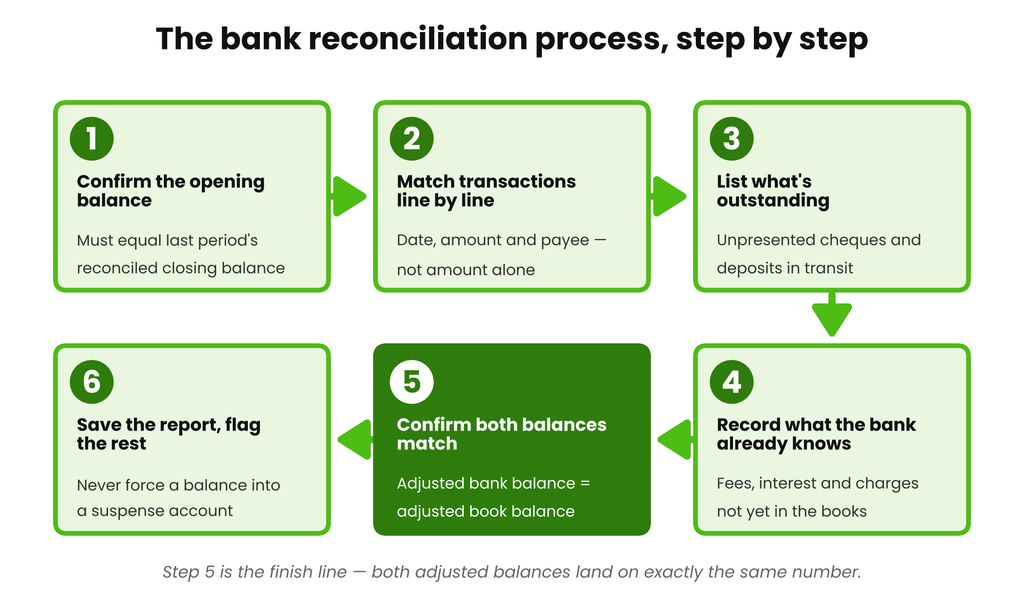
The six-step reconciliation process shown above, matched to Steps 1 through 6.
A Bank Reconciliation Example, Start to Finish
Here’s Marlow & Finch’s full August reconciliation, condensed into one table:
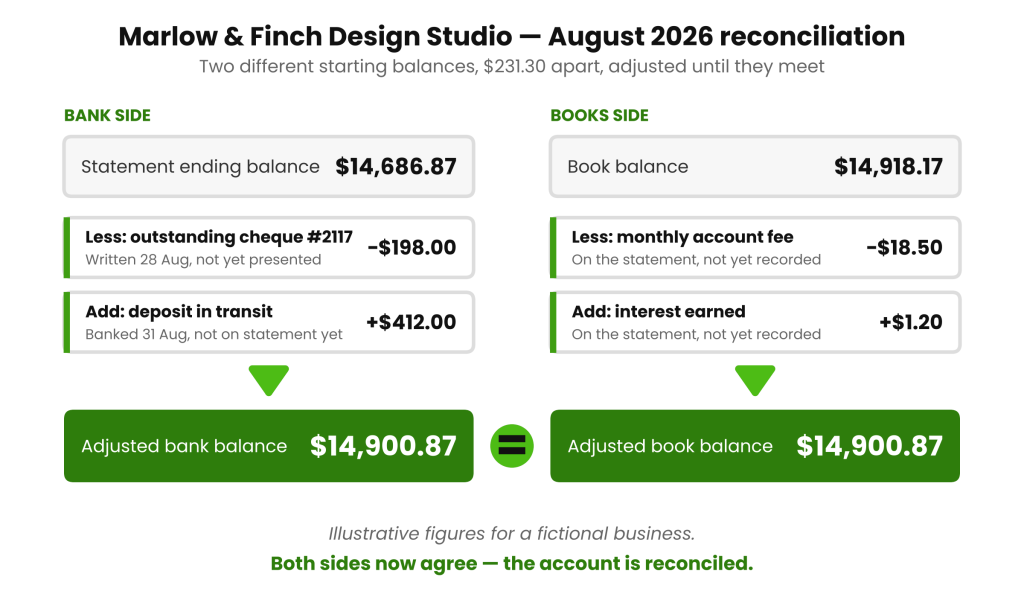
| Statement ending balance (31 Aug) | $14,686.87 | Starting point, bank side |
| Less: outstanding cheque #2117 | −$198.00 | Not yet presented |
| Add: deposit in transit | +$412.00 | Not yet on statement |
| = Adjusted bank balance | $14,900.87 | |
| Book balance (31 Aug) | $14,918.17 | Starting point, books side |
| Less: monthly account fee | −$18.50 | Not yet recorded |
| Add: interest earned | +$1.20 | Not yet recorded |
| = Adjusted book balance | $14,900.87 |
Both sides land on $14,900.87. That’s the bank reconciliation process explained the way it actually runs on a real account, start to finish.
Doing This in QuickBooks Online
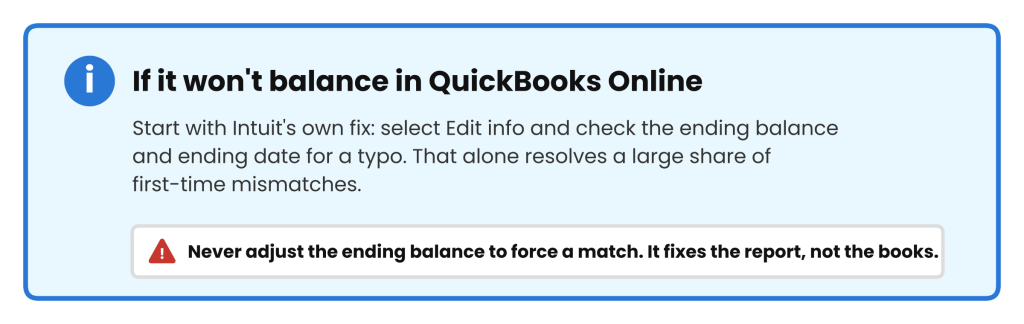
- Go to Bookkeeping (or Accounting) → Reconcile, choose the account, and enter the ending balance and ending date exactly as they appear on your statement.
- QuickBooks Online can also take an upload of the statement itself (PDF or CSV) and attempt AI-assisted matching. Processing can take up to about an hour, so it’s worth starting this before you plan to do anything else with the file.
- Work through the reconciliation window and select the checkbox next to each transaction that matches your statement. Watch the Cleared Balance and Difference fields as you go. The goal is Difference = $0.00.
- Once it hits zero, select Finish now, then Done. QuickBooks saves the reconciliation report automatically. Past reports are under History by account on the Reconcile page.
Doing This in Xero
- From the dashboard, open the relevant bank account and select Reconcile [X] items.
- For each green suggested match, check that the description genuinely lines up with what happened, then select OK.
- For anything unmatched, use Find & Match to search for the correct invoice or bill rather than creating a new transaction from scratch.
- For a transaction that isn’t in Xero at all yet, use the Create tab and fill in Who (the contact), What (the transaction type) and Why (the account or description).
- For money moving between two of your own accounts, use the Transfer tab rather than coding it as income or an expense.
- If you’ve got a run of similar uncoded lines, several small EFTPOS fees, for instance, use Cash coding to code them in bulk instead of one at a time.
- Set up a Bank Rule for anything recurring (rent, a subscription, a regular supplier) so Xero suggests the coding automatically next period.
- Once every line is handled, run the Reconciliation Report to confirm the account is fully reconciled.
QuickBooks Online vs Xero: Same Job, Different Buttons
The underlying accounting is identical in both. This is purely a map of where to click:
| What you’re doing | QuickBooks Online | Xero |
| Start a reconciliation | Bookkeeping → Reconcile | Bank account → Reconcile [X] items |
| Confirm a match | Tick the checkbox | Select OK on the green suggested match |
| Find a missing match | Search the register manually | Find & Match |
| Code a brand-new transaction | Add directly in the register | Create tab (Who / What / Why) |
| Move money between your own accounts | Journal entry or transfer | Transfer tab |
| Bulk-code similar lines | Batch actions in the register | Cash coding |
| Automate recurring coding | Bank rules | Bank rules |
| Confirm you’re finished | Difference = $0.00, then Finish now | Reconciliation Report |
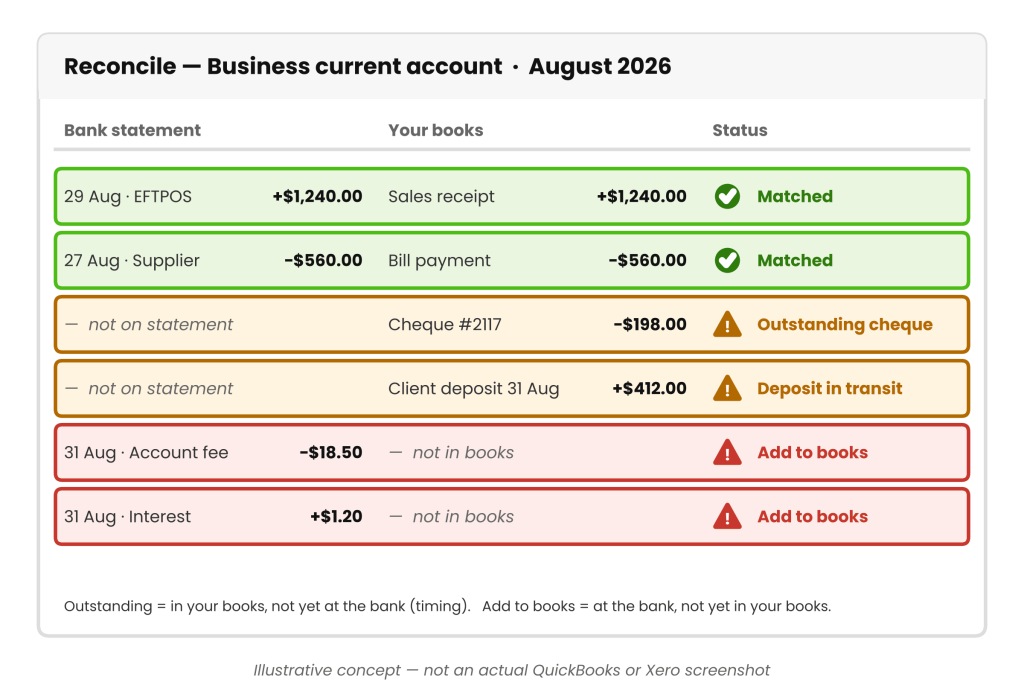
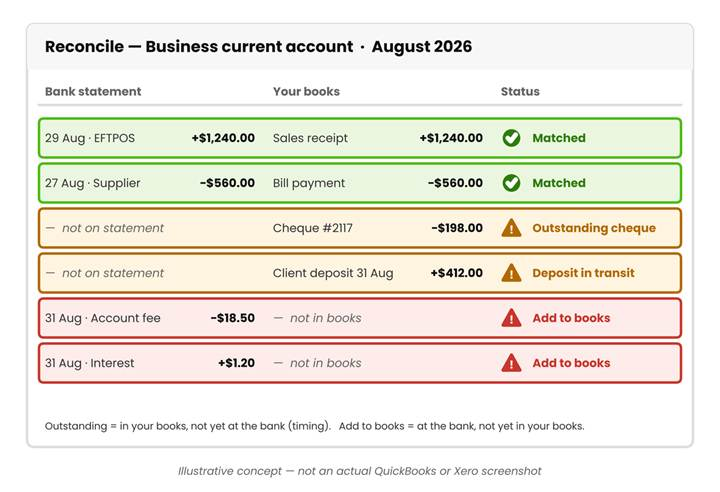
An illustrative concept of what a matched versus flagged line looks like. Not an actual QuickBooks or Xero screenshot.
What Changes by Country: UK, US, Canada and Australia
The accounting mechanics are identical everywhere. Double-entry bookkeeping doesn’t care what currency you’re in. What changes is how long different payment types take to clear, which affects how many outstanding items you’ll typically be carrying at any given moment.
| Country | Typical clearing times | What that means at month-end |
| UK | Faster Payments: usually within minutes, up to about 2 hours. CHAPS: same-day if sent before the bank’s cut-off. BACS: around 3 working days. | BACS-paid supplier payments are the ones most likely to still be outstanding at month-end. |
| US | Standard ACH: 1–3 business days (a large majority settle within one business day). Same-Day ACH: same day, cut-off dependent. Domestic wires: same day. | Standard ACH payments are the usual timing difference to watch for. |
| Canada | Interac e-Transfer for Business: typically seconds to minutes. Standard EFT: can take several business days. | EFT payments, not e-Transfers, are what you’ll usually see sitting outstanding. |
| Australia | NPP payments (Osko, PayID): close to real time, 24/7. BPAY and standard EFT/direct entry: can still take a day or more depending on the bank and biller. | BPAY payments made near month-end are a common outstanding item. |
If you or a client operate a multi-currency account, add exchange-rate movement to this list as another routine reconciling item. We’ll cover how to handle that specifically in an upcoming guide on foreign exchange gains and losses.
Where This Actually Goes Wrong
Most reconciliation problems fall into a handful of repeat patterns. Here’s what they look like and how to catch them.
Duplicate transactions
A bank feed hiccup can re-import the same transaction twice, once automatically, once from a manual entry made before the feed caught up. On one file, a $875.40 supplier payment was pulled in this way twice: the bank statement showed it once, the books showed it twice, overstating expenses and understating the book cash balance by $875.40 until the duplicate was found and deleted. Search by the exact amount and date to catch these.
Transactions dated to the wrong period
A cheque written on the 30th but not processed by the bank until the 2nd of the next month is a normal timing difference. Match against the date the bank actually processed it, not the date you wrote it, otherwise you’ll be chasing a “discrepancy” that’s really just timing.
Correct total, wrong categorisation
A loan repayment posted entirely to an expense account, instead of split between principal and interest, won’t show up as a reconciliation difference at all. The total is right, so the bank balance matches. It will, however, quietly distort your profit and loss and your balance sheet. Reconciliation confirms your cash position; it doesn’t by itself confirm your categorisation is correct, so pair it with a periodic chart-of-accounts review.
Bank fees and charges left unrecorded
The fix here isn’t remembering every month. It’s a bank rule (Xero) or a recurring transaction template (QuickBooks Online), so the fee codes itself the moment it hits the feed. Left alone, a small unrecorded fee doesn’t go away; it just compounds into a slightly bigger unexplained gap every period.
Intercompany transfers booked as income or expense
Moving funds between two entities you bookkeep for is not a sale and not a cost. Booking it as either will overstate revenue on one side or expenses on the other. Route transfers like this through a dedicated intercompany clearing account on both sets of books, and tie the two entries together explicitly.
Opening balance mismatches after switching software
When a client migrates from one platform to another, the new system’s opening balance is only as good as what was typed in during setup. Verify it against the last reconciled statement from the old system before trusting anything reconciled after the migration date. An error here silently carries forward into every period after it.
If You’re Still Off: A Troubleshooting Method
This is the part most guides skip past with “retrace your steps.” Here’s an actual method, in order:
- Re-check the statement period and ending date you entered against the real statement. A wrong date alone will throw the whole reconciliation off.
- Search your books for a single transaction equal to the exact difference. That’s the most common cause, and the fastest to confirm.
- Check for a transaction of exactly half the difference, entered with the wrong sign. If you’re off by $84.00, look for a $42.00 transaction recorded as a deposit that should have been a withdrawal, or the reverse. Reversing a sign doubles the error, which is why halving the difference finds it.
- If the difference is evenly divisible by 9, it’s very likely a transposition error: two digits swapped somewhere, such as $63.00 entered as $36.00. This is a genuinely old bookkeeping trick, and it still works because the maths behind it hasn’t changed.
- Check the boundary dates. Confirm you haven’t included a transaction from next period or left one out from the very end of this one.
- Still stuck? Reconcile in smaller chunks, week by week within the period, to isolate which week the error is actually hiding in, rather than re-checking the whole month again from scratch.
One habit undoes all of this: adjusting the ending balance just to make the difference read zero. That fixes the report, not the books, and it buries whatever actually caused the gap until it resurfaces later, usually bigger.
Catching Up If You’re Behind
If several months have piled up unreconciled, don’t try to reconcile them all as one block. Work oldest to newest, one statement period at a time. Errors compound, and a later month is impossible to explain properly while an earlier one is still wrong underneath it. Budget real time for this: even a 3 to 4 month backlog on an active account can take several hours to work through properly. If it’s grown well beyond that, it’s usually more efficient, and safer, to bring in help than to keep chipping away at it solo.
How Often Should You Reconcile?
Monthly is the practical minimum for most small businesses, tied to when the bank statement closes. Weekly makes sense for high-transaction-volume accounts or any business managing cash flow tightly enough that a two-week-old error is already a problem by the time it’s found. We cover the fuller picture, including when weekly is worth the extra time and what counts as too far behind, in How Often Should You Actually Reconcile Your Books? (/how-often-to-reconcile-your-books).
Bank Reconciliation Checklist
| ☐ | Have this period’s full bank statement in hand, covering the exact statement dates |
| ☐ | Confirm the opening balance matches last period’s closing balance, on both the statement and the books |
| ☐ | Match every transaction line by line: date, amount and payee, not amount alone |
| ☐ | List every outstanding cheque or payment not yet presented |
| ☐ | List every deposit in transit not yet on the statement |
| ☐ | Enter any bank fees, charges or interest the bank has actioned but the books haven’t recorded |
| ☐ | Confirm the adjusted bank balance equals the adjusted book balance exactly |
| ☐ | Save or export the reconciliation report |
| ☐ | Flag anything still unresolved and follow up next period rather than forcing a balance |
FAQs
What’s the difference between a bank statement and a bank reconciliation statement?
A bank statement is the bank’s own record of what happened in the account. A bank reconciliation statement is your document showing how that statement compares to your books: the matched items, the outstanding items, and the adjustments needed to bring both to the same adjusted balance.
Do I still need to reconcile if my bank feed connects automatically to Xero or QuickBooks?
Yes. A connected feed means transactions import automatically. It doesn’t mean they’re confirmed correct or complete. Feeds can duplicate a transaction, miss one entirely, or bring in the wrong date. Someone still needs to check each line against the actual statement.
What’s an outstanding cheque, and why does it matter?
It’s a cheque you’ve written and recorded in your books that the recipient hasn’t yet deposited, or that hasn’t yet cleared the bank. It will show as part of the gap between your bank and book balances until it clears. That’s expected, not an error, as long as you’re tracking it.
My reconciliation is off by an odd amount. Where do I even start?
Work through it in order: search for a transaction equal to the exact difference, then check for one at half the difference with a reversed sign, then check whether the difference divides evenly by 9 (a classic sign of a transposition error). See the troubleshooting method above for the full approach.
Can I reconcile a business account that’s months behind?
Yes. Reconcile the oldest unreconciled period first and work forward one statement at a time. Trying to reconcile several months at once, or starting with the most recent, makes it far harder to find where an error first entered the books.
Should I reconcile weekly or monthly?
Monthly is the workable minimum for most small businesses. Move to weekly if you’re managing cash flow tightly, or if transaction volume is high enough that errors are easier to lose track of.
What if I find a transaction on the statement that isn’t mine?
Contact your bank immediately rather than waiting for your next scheduled reconciliation. Most banks limit how long you have to dispute an unauthorised transaction, so treat this as urgent, not routine.
Back to That $231.30 Gap
The gap at the start of this guide wasn’t a mystery. It was $198.00 outstanding, $412.00 in transit, an $18.50 fee and $1.20 of interest, all sitting unrecorded until someone worked through them in order. That’s the whole method: match what you can, list what’s timing, investigate what’s left, and don’t call it reconciled until both adjusted balances land on the same number.
Do that every period, in QuickBooks Online, in Xero, or on paper, and the books stay something you can actually trust, not just a report that happens to say zero. The $412 EFTPOS line and the $875.40 duplicate payment earlier in this guide weren’t caught by a clever tool. They were caught because someone checked the actual lines instead of the total. That’s still the job, however good the software gets.